
Digiturk Play Apple TV setup guide

Follow these steps to install the app on this device, sign in and start watching.
Go to setup steps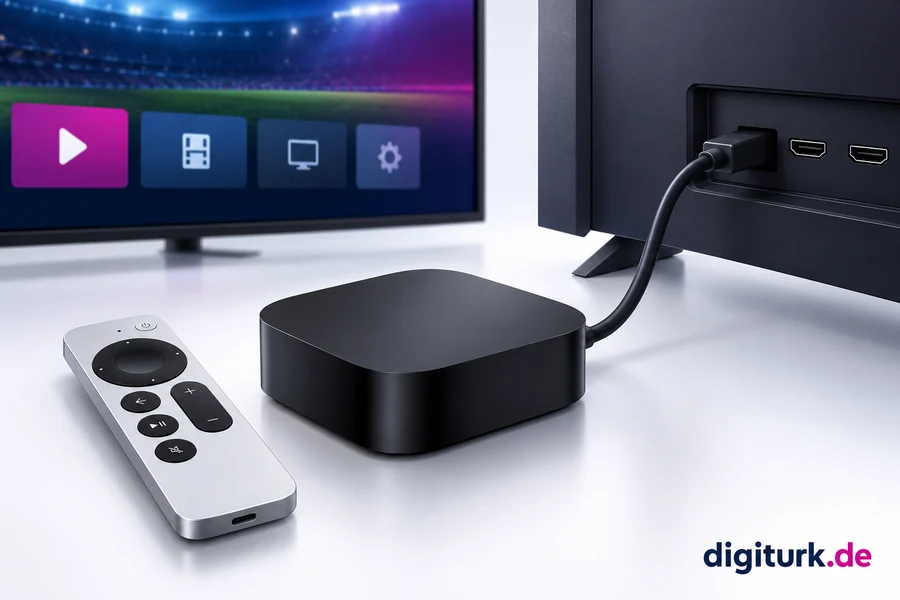
Apple TV
Apple TV HD · 4K
Use your TV remote for the TV installation steps. This store link lets you check the app; opening it on your phone does not install it on the TV.
Official sourceStep-by-step setup
These steps are for the Apple TV box, not the Apple TV app on a television. Third-generation Apple TV has no App Store. The Digiturk listing currently requires tvOS 15 or later; check the latest listing.
 Digiturk Play Yurt Dışı
Use the viewing username and password from your membership email or panel. The one-time portal code is not your viewing password.
View my membership detailsConnect your Apple TV box by HDMI, select the correct input and connect to the internet. Sign in to your Apple Account.
Open App Store on the Apple TV home screen. Search for “Digiturk Play” and choose the Yurt Dışı app.
Select Get and complete any Apple Account confirmation. Once downloaded, select Open to launch the app.
Open the app and choose sign in. Enter your supplied viewing username and password exactly, without extra spaces. Then choose Live TV or content included in your package and press play. Close any stream playing on another device first.
Enter the username and password supplied with your membership.
digiturk.de
Help when you get stuck
App not found in the store
Check the device model, system updates and that the store country matches where you live. A store account may be needed. A missing app can be a model or region issue; send your model to support. Do not force installation by changing countries or installing APKs.
Username or password rejected
Copy the current viewing credentials from the member panel. Check letter case and spaces. The digiturk.de panel uses your order email and a one-time code; the viewing app uses the supplied username and password. For password issues, follow the panel’s password-change guidance or ask support.
Signed in, but no picture or buffering
Check that your membership is active and the content is in your package. Stop streams on other devices. Restart the app and device and install updates. Try Ethernet or move closer to the router and pause large downloads. If it continues, record the error and time for support.
Still unable to watch?
Tell us your device model and where you got stuck; we’ll help.